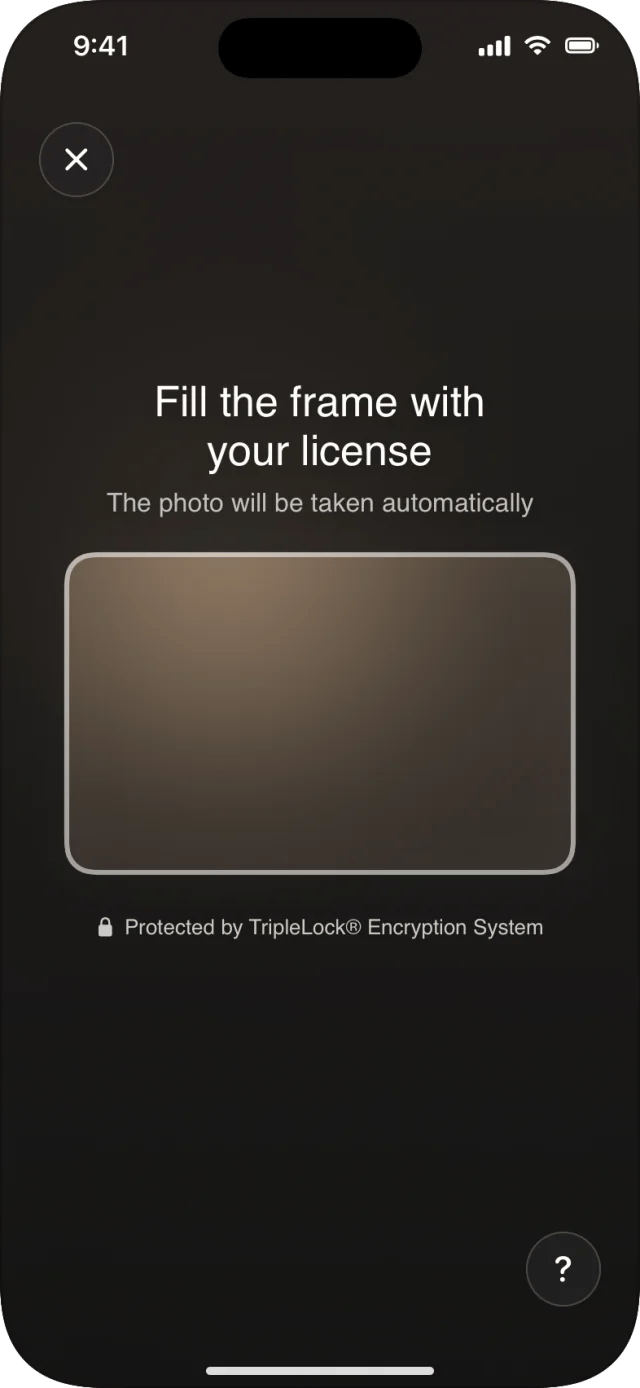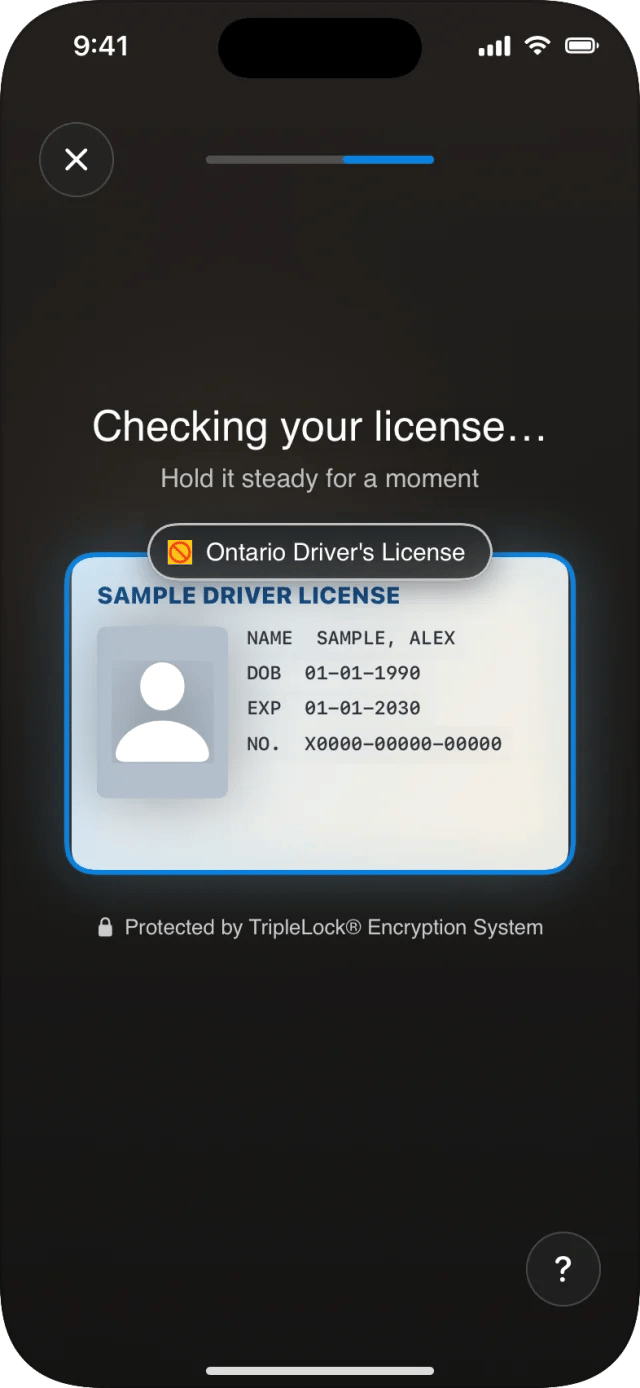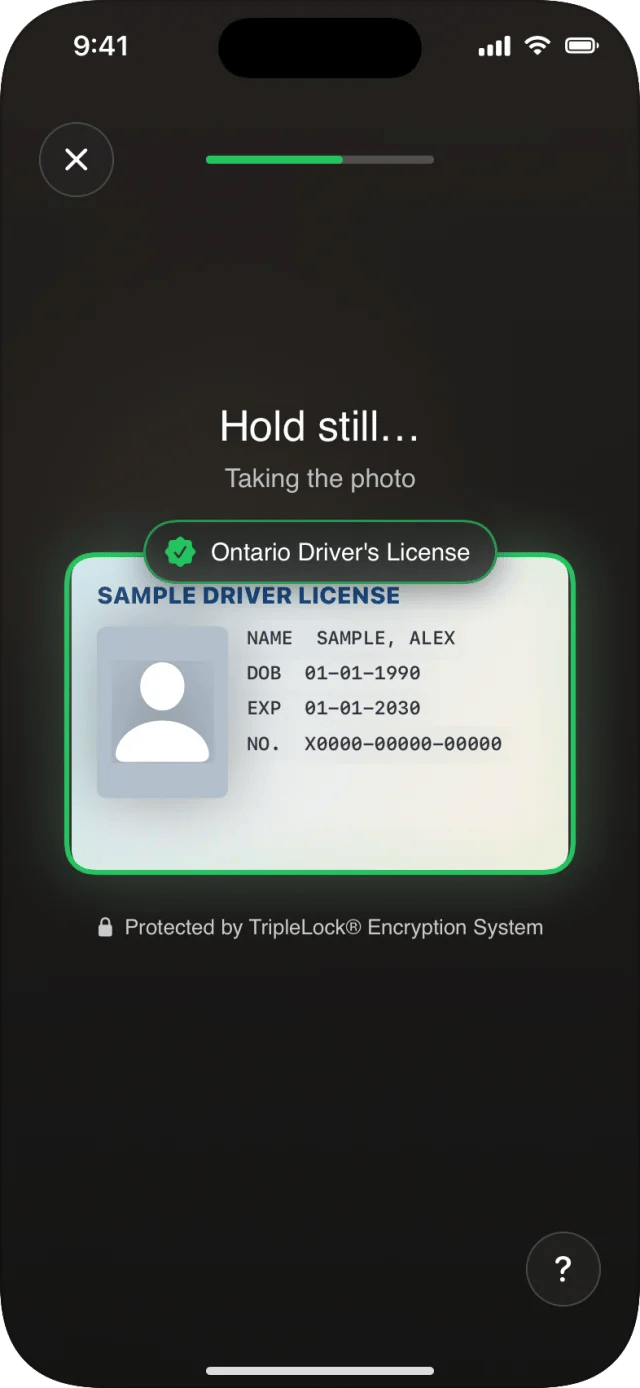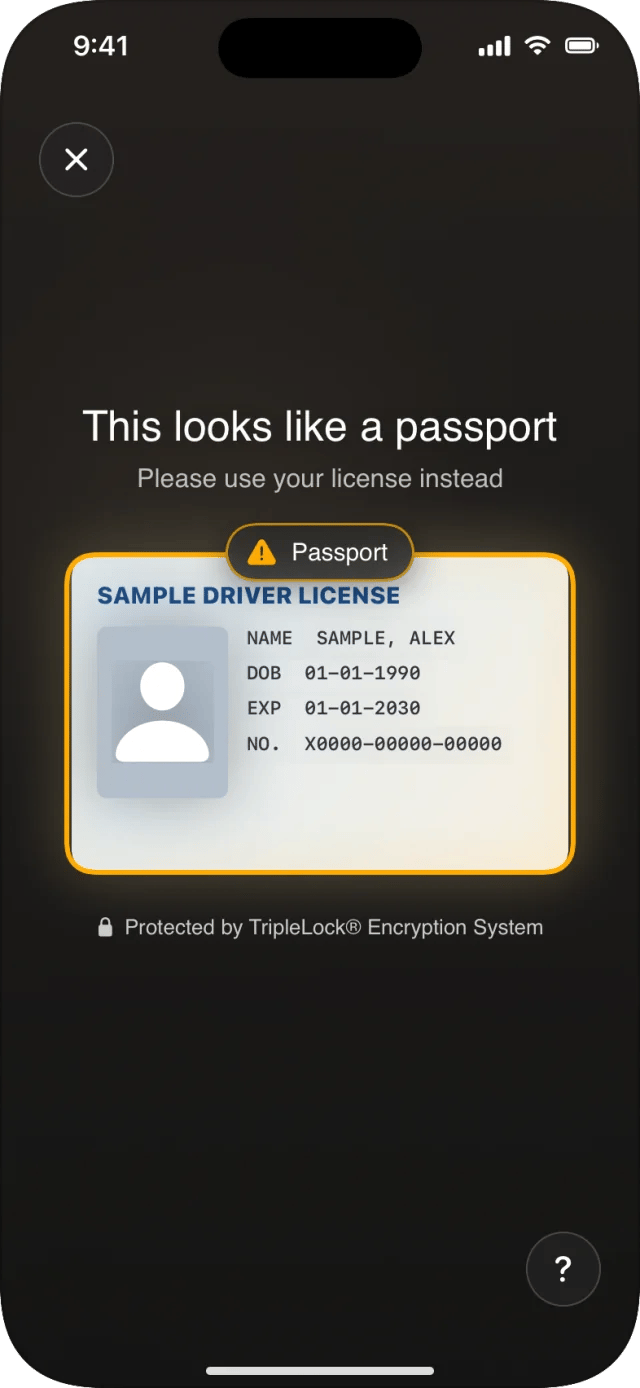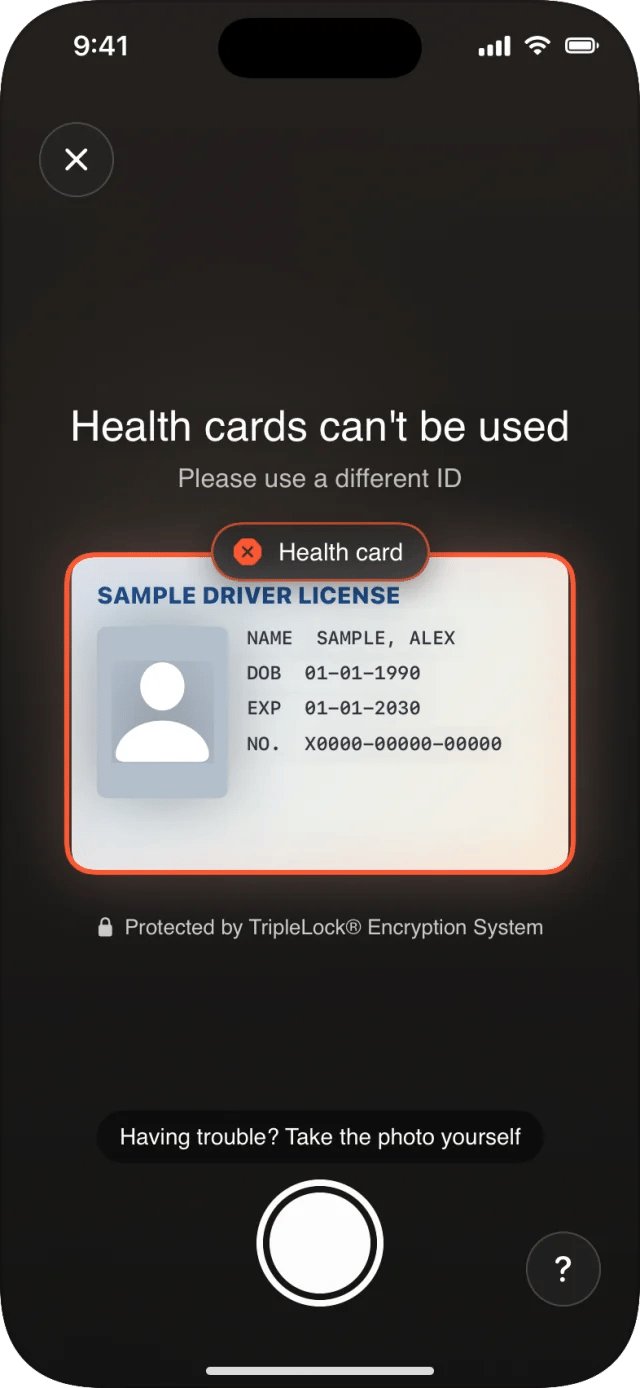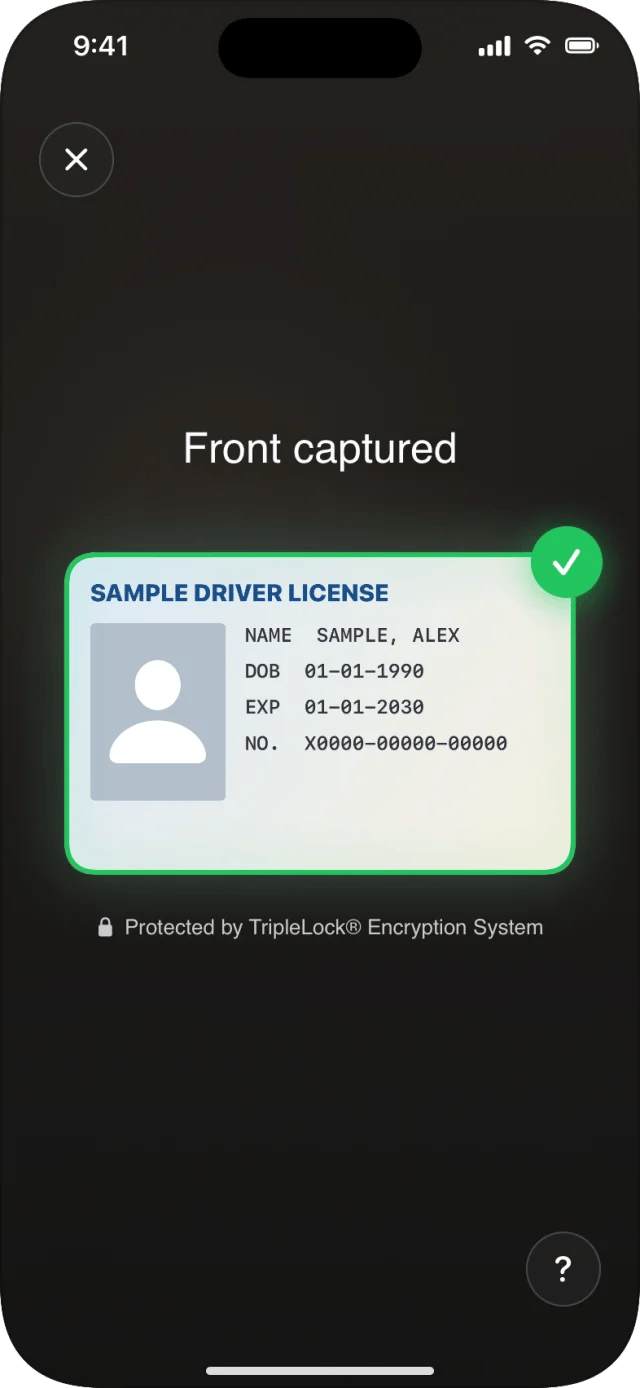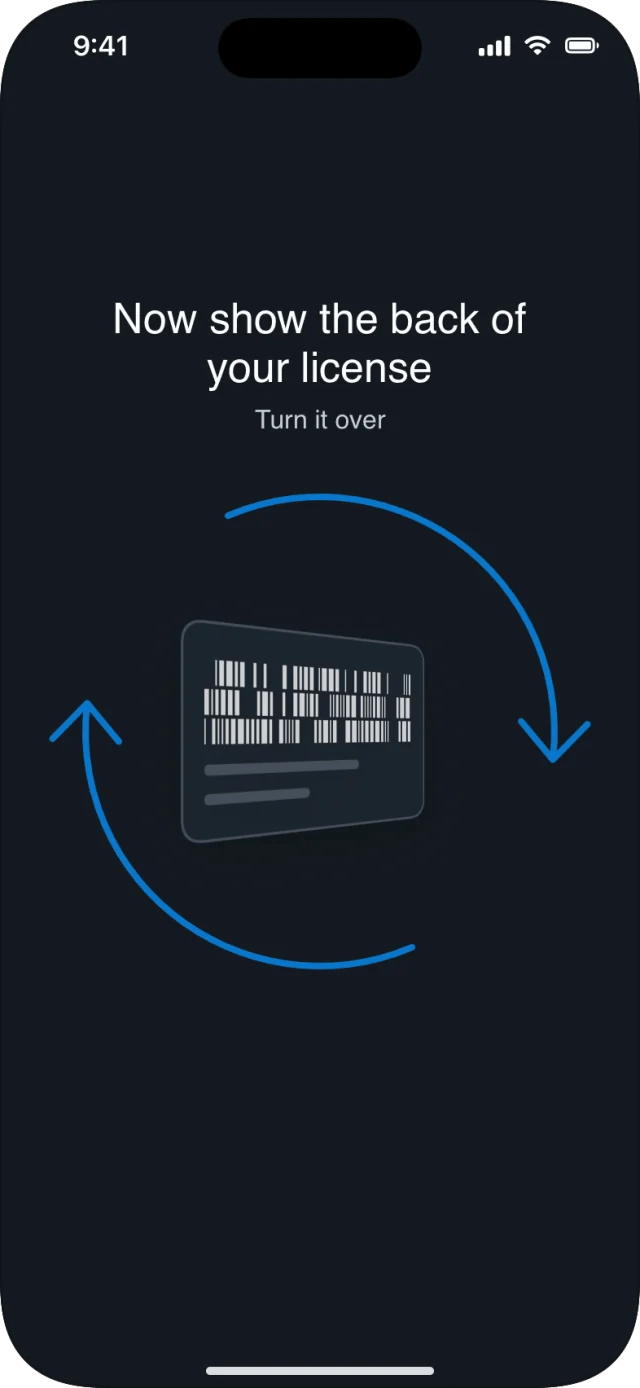
The document camera shows one instruction at a time. The frame changes color as the capture goes: white while searching, blue while adjusting, amber when something needs the user, red for a document that can’t be used, green when it’s ready. Screenshots are iPhone, with the deepidv default look. Your branding changes the colors and fonts.

Before the camera

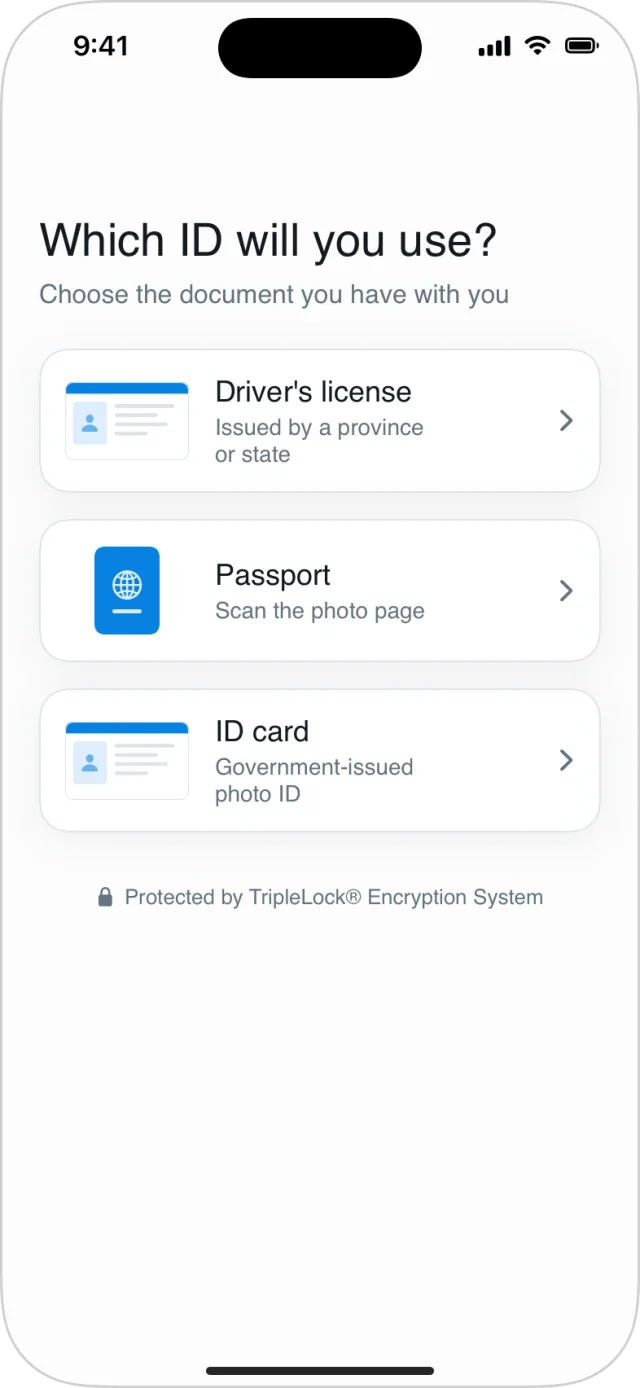
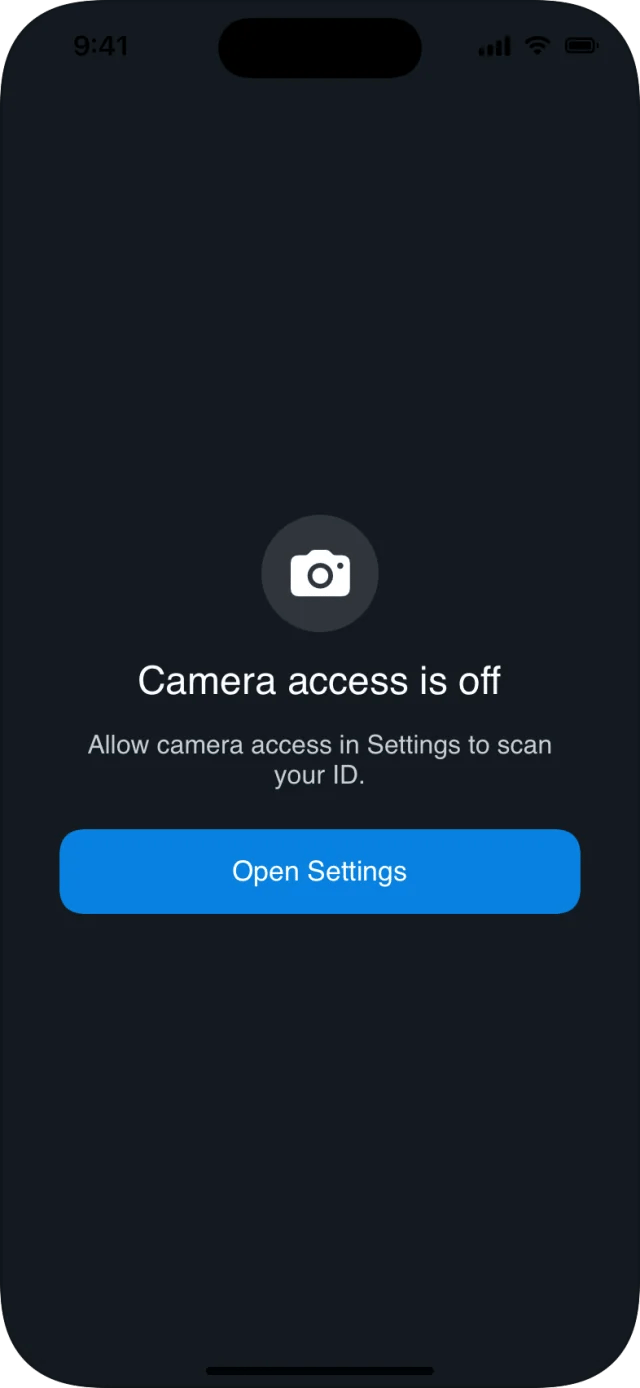
iPhone screen titled 'Which ID will you use?' with three rows: Driver's license, Passport and ID card.iPhone screen: camera access is off, with an Open Settings button.

Finding and lining up the card

Capture screen: an empty white frame with 'Fill the frame with your license, the photo will be taken automatically'.Capture screen: a sample license in a blue frame with the label 'Ontario Driver's License' and 'Checking your license… hold it steady for a moment'.Capture screen: the sample license in a green frame, label 'Ontario Driver's License' with a tick, 'Hold still… taking the photo', and a progress bar.

Adjustments

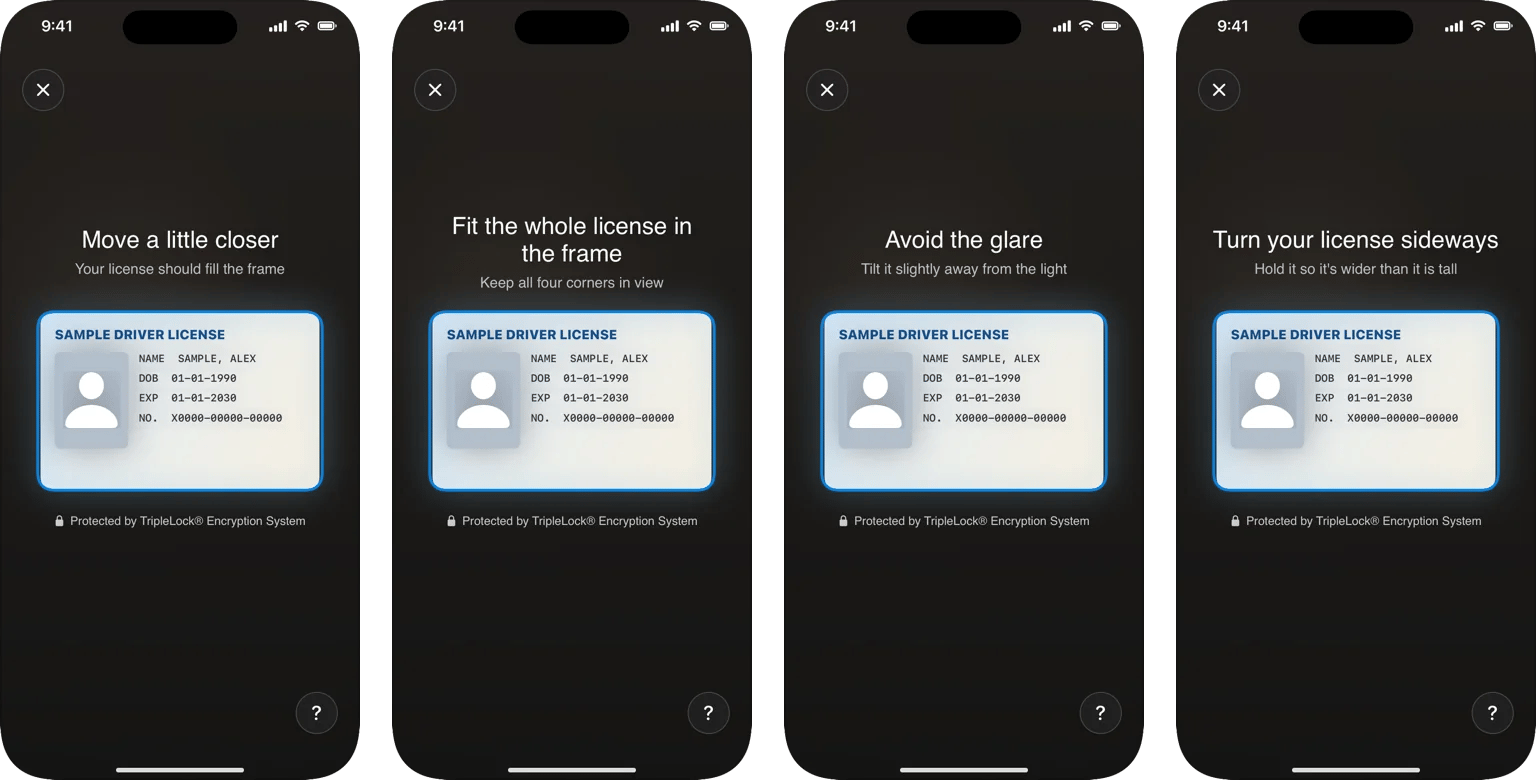
Four capture screens side by side: 'Move a little closer', 'Fit the whole license in the frame', 'Avoid the glare, tilt it slightly away from the light', and 'Turn your license sideways'.

Move closer, fit in the frame, avoid glare, turn sideways.

Needs the user (workflows)
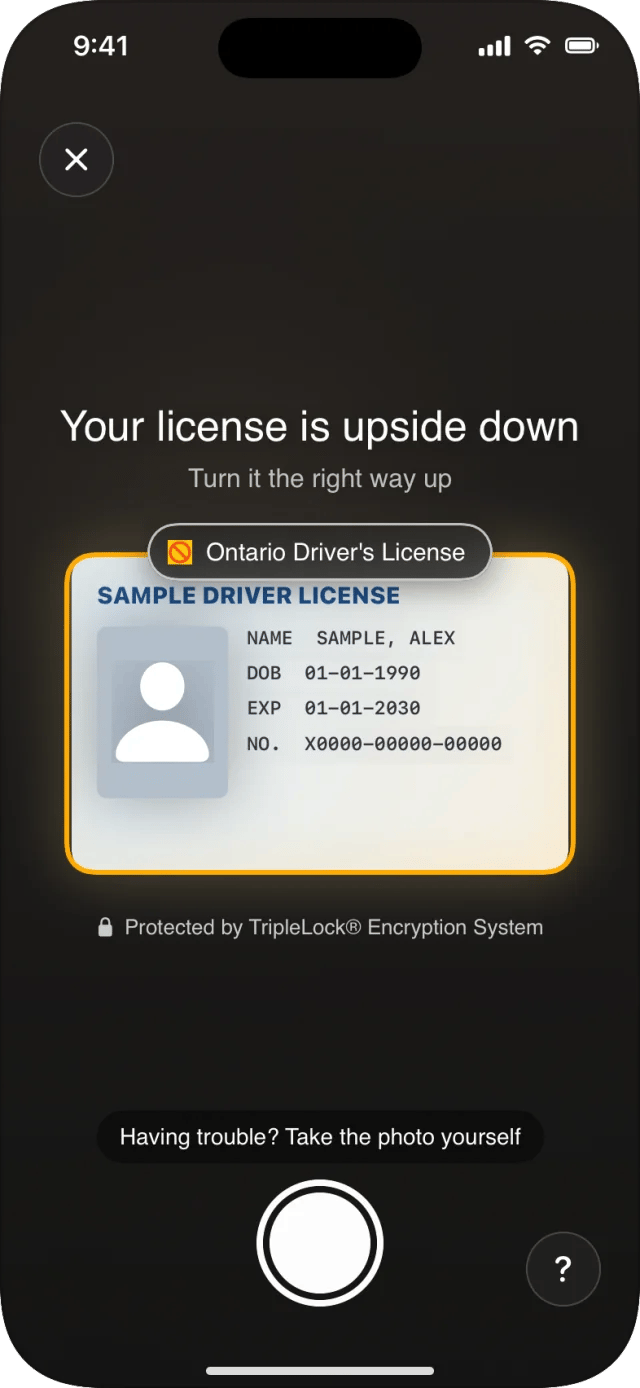
Capture screen: amber frame, 'Your license is upside down, turn it the right way up', with the manual shutter below.Capture screen: amber frame labeled 'Passport', 'This looks like a passport, please use your license instead'.Capture screen: red frame labeled 'Health card', 'Health cards can't be used, please use a different ID', with the manual shutter.

Captured, flip, done

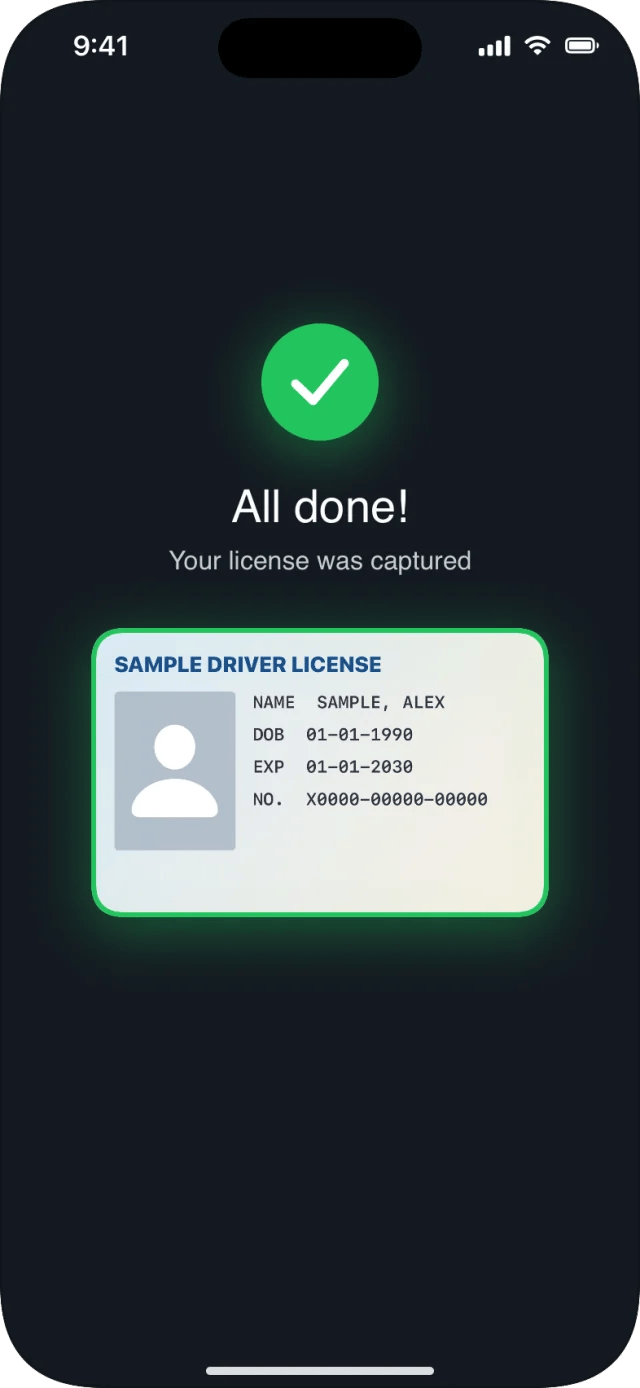
Capture screen: the card frozen in a green frame with a tick, 'Front captured'.Screen with a card-turning animation: 'Now show the back of your license, turn it over'.Screen with a green tick: 'All done! Your license was captured', with the captured card.

Passports

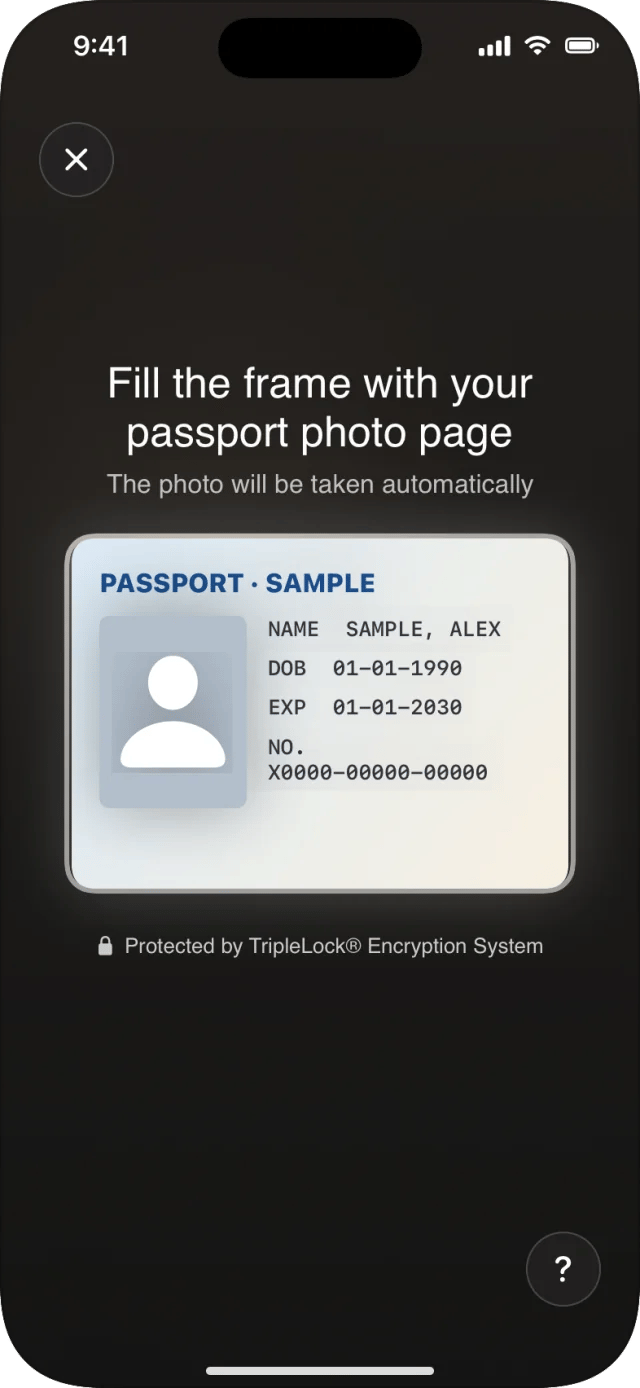
Capture screen: a passport-shaped frame with 'Fill the frame with your passport photo page'.
The frame takes the shape of the photo page. Only the photo page is captured, with no flip. In workflows it’s captured once it has been in view and steady for 1.5 seconds.

Help and the manual shutter

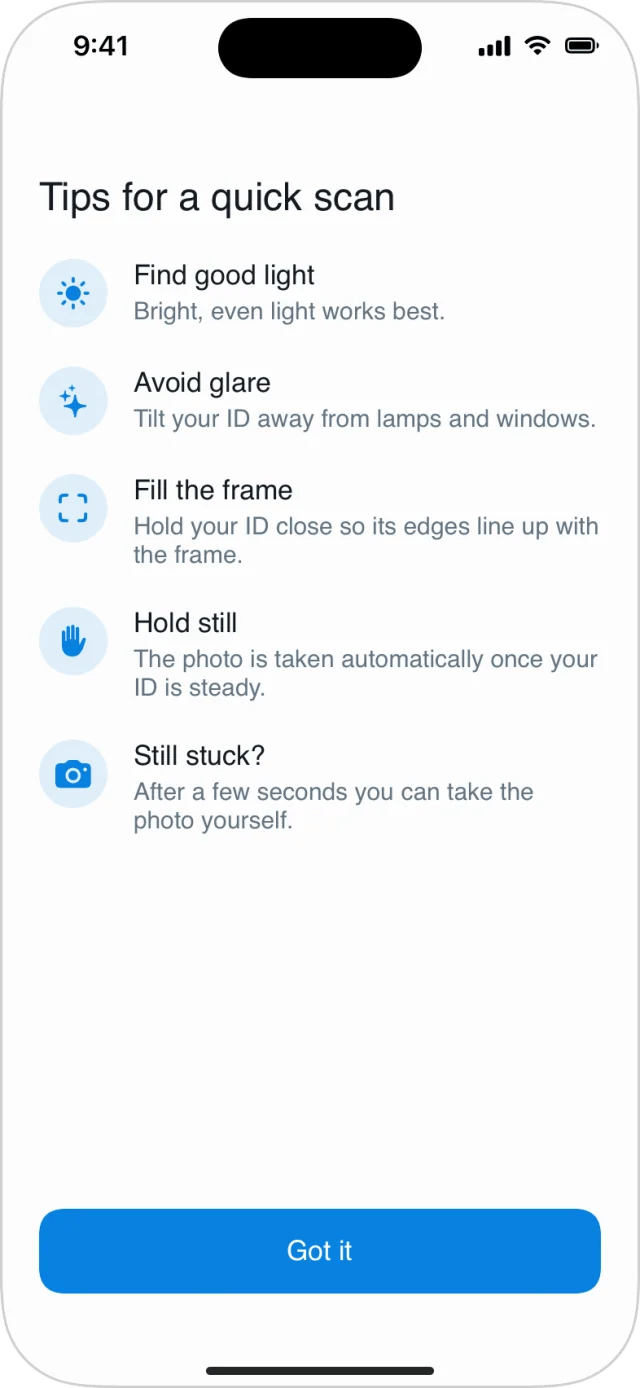
Sheet titled 'Tips for a quick scan': find good light, avoid glare, fill the frame, hold still, still stuck?
  • The ? button opens Tips for a quick scan.
  • Having trouble? Take the photo yourself and a shutter button appear 8 seconds after a card first comes into view, or 15 seconds into the side at the latest. A manual photo goes through the same checks on deepidv’s side.
  • The ✕ button closes the camera. Your app receives .failure with kind .cancelled.

Accessibility

  • Each new instruction is announced by VoiceOver, and the capture has haptic feedback.
  • With Reduce Motion on, animations are replaced by simple fades.
  • Messages are in English, Spanish or French. See Languages.

Guidance for your users

Put this in your own onboarding or help pages:

On iPad

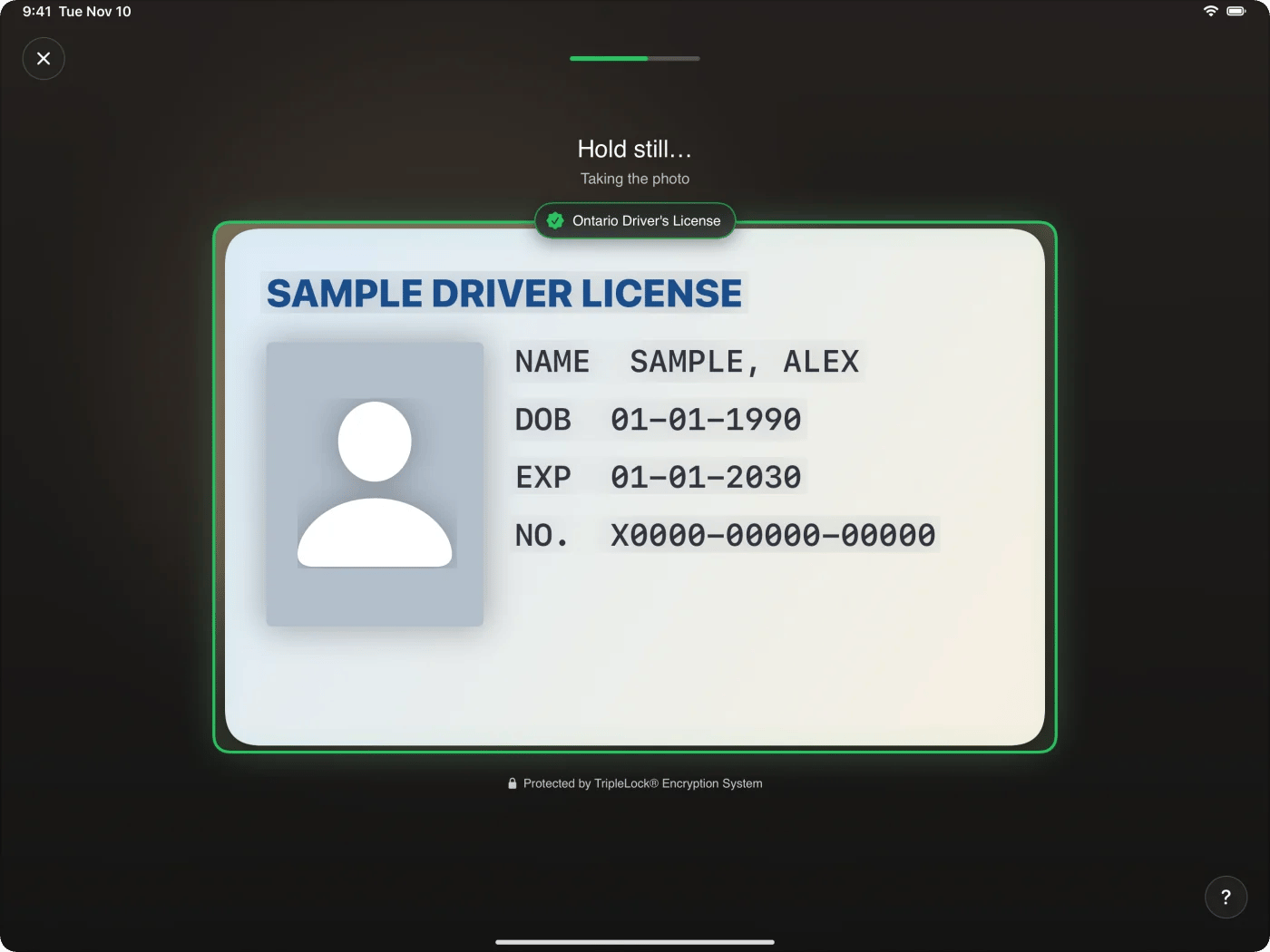
iPad in landscape: the capture frame in the center with the sample license recognized, 'Hold still… taking the photo'.

The same screen on a 12.9-inch iPad in landscape.

The frame keeps the card’s shape and scales to the screen. If the iPad is turned during a scan, capture continues and the photo is sent whole instead of cut to the frame.